Viewing the device auto-login list
The device auto-login list allows you to see the list of devices with automatic login enabled.
You can filter the list of devices to see only the information that meets the filter conditions. For example, you can filter by device identification, or the date a device was added to the account.
Read about enabling device auto-login
To view the device auto-login list
- Navigate to Accounts > Devices auto-login. The list of devices with automatic login enabled is displayed.
To filter the device auto-login list
- Navigate to Accounts > Devices auto-login.
- Select Add parameter, and from the list, select the check box of the filter you want to add, for example, Device ID.
The filter is added below. The name of the filter depends on the filter you select.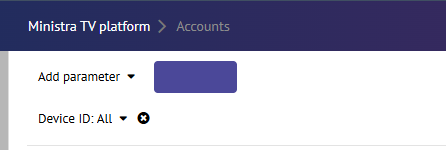
- To define how you want to filter, do the following:
- Select the filter field.
A context menu is displayed with All as the default value.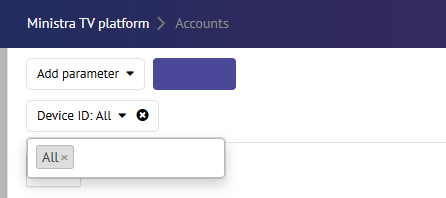
- In the context menu, select the empty space next to All and from the list, select the value you want to add.
The filter is updated with your selected value.
- Select the filter field.
- Select Apply Filter. The devices meeting the filter conditions are displayed.